
Make a Timed MCQ Test With AI From Any Chapter or Your Notes
Give Veda a topic, your notes, a chapter PDF or a link, choose how many questions and how hard, and take a scored test. Then review every mistake with the reason.
By Miss Shanti Divaraniya, Co-founder
To make an MCQ test with AI in Veda, open AI Studio, choose MCQ Test, and type a topic or add your material: pasted notes, a chapter PDF, a photo of the page, or a YouTube or web link. Pick how many questions and how hard, and in the Android app a time limit too. The AI writes the test, you take it without seeing any answers, and when you submit you get a score out of 100 and a review of every question, with the right answer and the reason.
Practice and a test are different things, and students mix them up.
- The answer after each question
- How you learn
- No answers until you submit
- How you find out what you learnt
Before a unit test, most students need the second one more than they think.
Making the test, step by step
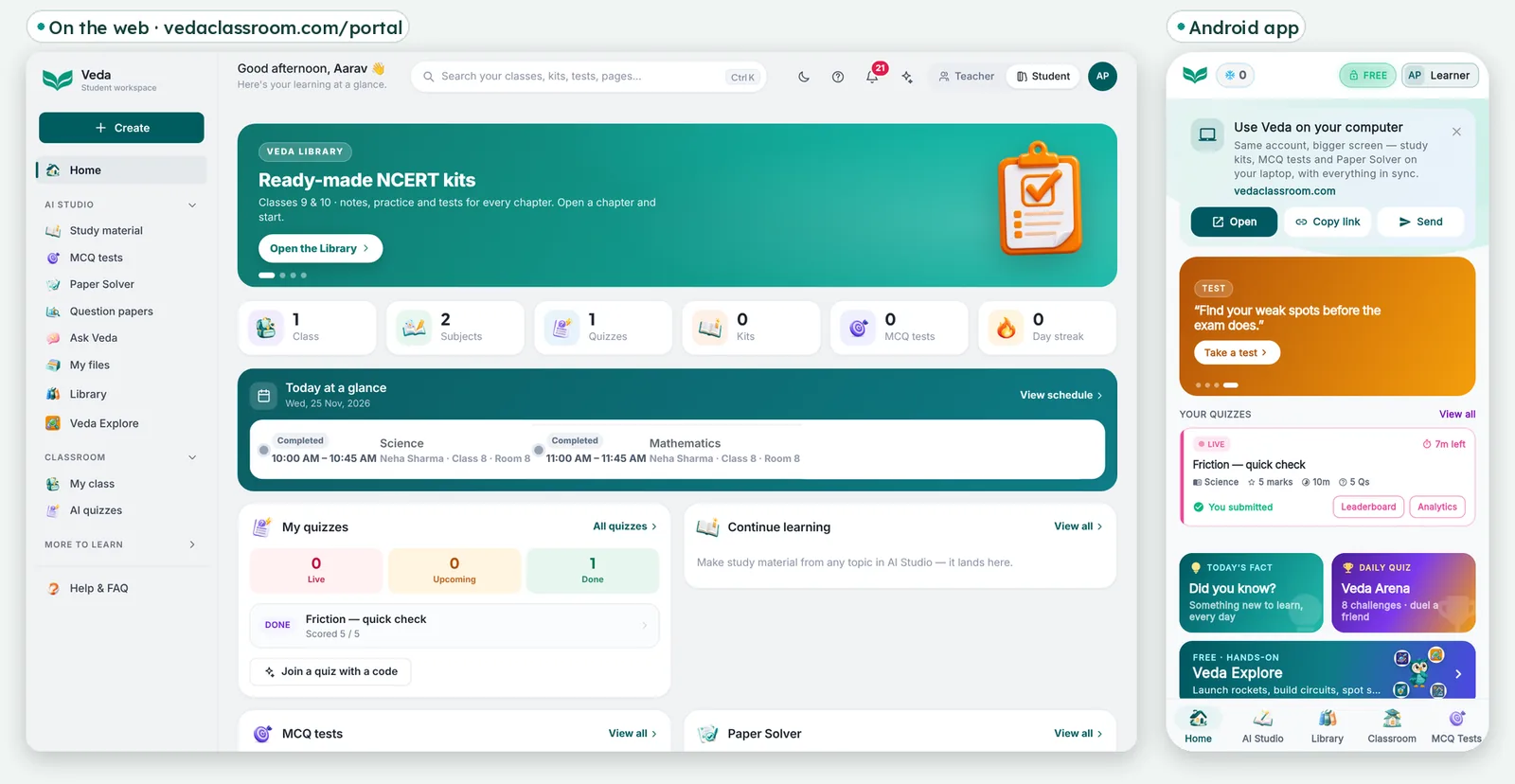
- Open AI Studio and choose MCQ Test. On the web at vedaclassroom.com/portal, the tests you make are kept under the MCQ tests tab. In the Android app the student home has a "Take a test" card.
- Tell it what to test. Type a chapter name, or paste your own notes, or attach a PDF, Word file or photo, or paste a YouTube or website link. A test written from your teacher's notes is closer to your real exam than one written from a general topic name.
- Choose the number of questions. On the web you can pick 10, 15, 20, 25 or 30; in the app, 5 to 30.
- Choose the difficulty. Mixed, Easy, Medium or Hard. Mixed is the closest to a real paper.
- Set a time limit, if you want one. In the app you can choose 5, 10, 15 or 30 minutes, or no limit. The clock starts when you press Start and the test is handed in by itself when it runs out.
- Check the language. The test follows your class, board and medium, and you can pick any of more than 40 languages.
- ⌨️ A chapter nametyped in any language
- 📝 Your notespasted, or a photo of the pages
- 📄 A filea PDF or Word chapter
- ▶️ A linka YouTube lesson or a web page
Then press the button and wait a little while your material is read by Veda's AI and turned into questions; the test opens by itself when it is ready. The questions are mostly MCQs, with some true-or-false ones mixed in.
Taking it like a real test
While you are answering, nothing tells you whether you are right. You can move between questions and change an answer before you submit. If you set a time limit, a clock counts down on the screen. Close the other tabs, put the phone face down if you are on the computer, and treat it like the real thing.
Your score, and the review that matters more
When you submit, the score comes first, along with how long you took and a breakdown by level, so you can see whether you are losing marks on the easy questions or the hard ones.
Under it is the review. Every question is listed with a tick or a cross, your answer, the right answer, and an explanation. Each one also has a Learn more button, where the AI writes a longer explanation of that question, the part your notes skipped. Go through every cross. Then go through the ticks you guessed.
Practising the ones you got wrong
A test shows you the gaps; practice fills them.
- Testtimed, no answers shown
- Reviewevery cross, then lucky ticks
- Practisean MCQ Practice set on the gaps
- Retesta day later; best score kept
Three things that work:
- Retake the test a day later. Your best score is kept, and the second attempt tells you whether the review stuck.
- Make an MCQ Practice set on the same topic. In practice you see the explanation after every answer, questions you get wrong come back before the ones you got right, and Review my mistakes keeps the list for you. We wrote about it in AI MCQ practice, level by level.
- Use the Test tab inside a study kit. If you made Study Material for the chapter, each topic has a Test tab. There you can build a test from that topic's practice questions, which uses no credits, or ask for fresh AI questions, which uses one. On the web this tab offers a time limit of 10, 15, 30 or 60 minutes.
Challenge a friend
A test you made can be shared as a link with "Challenge a friend". Once it is shared you see a leaderboard and which questions most people got wrong. Studying with two friends who take the same test before a unit test is worth more than an hour of reading alone. We wrote more about it in challenging friends with a quiz link.
Class quizzes from your teacher are separate: those you play in the Veda app on Android, and your teacher sees the results.
What it can't do, and what to check
- The AI can get a question wrong. Not often, but it happens. If the marked answer looks wrong, check your textbook and ask your teacher before you learn it. Report the question so we can fix it.
- A general topic gives a general test. If your school follows a particular textbook, attach the chapter or your teacher's notes so the questions stay inside your syllabus.
- It does not test writing. These are MCQ and true-or-false questions. Most exams also want written answers; practise those on paper.
- It uses AI credits. Writing a test uses credits. The free plan includes credits every month.
- Same account, two screens. The Android app and the web share one account, so a test made on the phone is waiting on the computer. There is no iPhone app; iPhone users can use the web.
Questions students ask
Can I make a test from my handwritten notes?
Yes. Take a clear photo of the pages and attach it. Neat handwriting in good light works best.
Can I set a timer?
Yes. In the Android app you choose a time limit when you make the test. On the web, tests built in a study kit's Test tab take a time limit too.
Will I see the answers?
Only after you submit. Then every question shows your answer, the right one and why.
Is it free?
It is free to start. Tests are written with AI credits, and the free plan includes some every month. Download the app here.