
Ask Veda: An AI Doubt Solver That Answers in Your Language
Ask your doubt in your own words, attach the PDF, a photo of the page or a link, and pick your language. Then let Veda quiz you on it right inside the chat.
By Miss Shanti Divaraniya, Co-founder
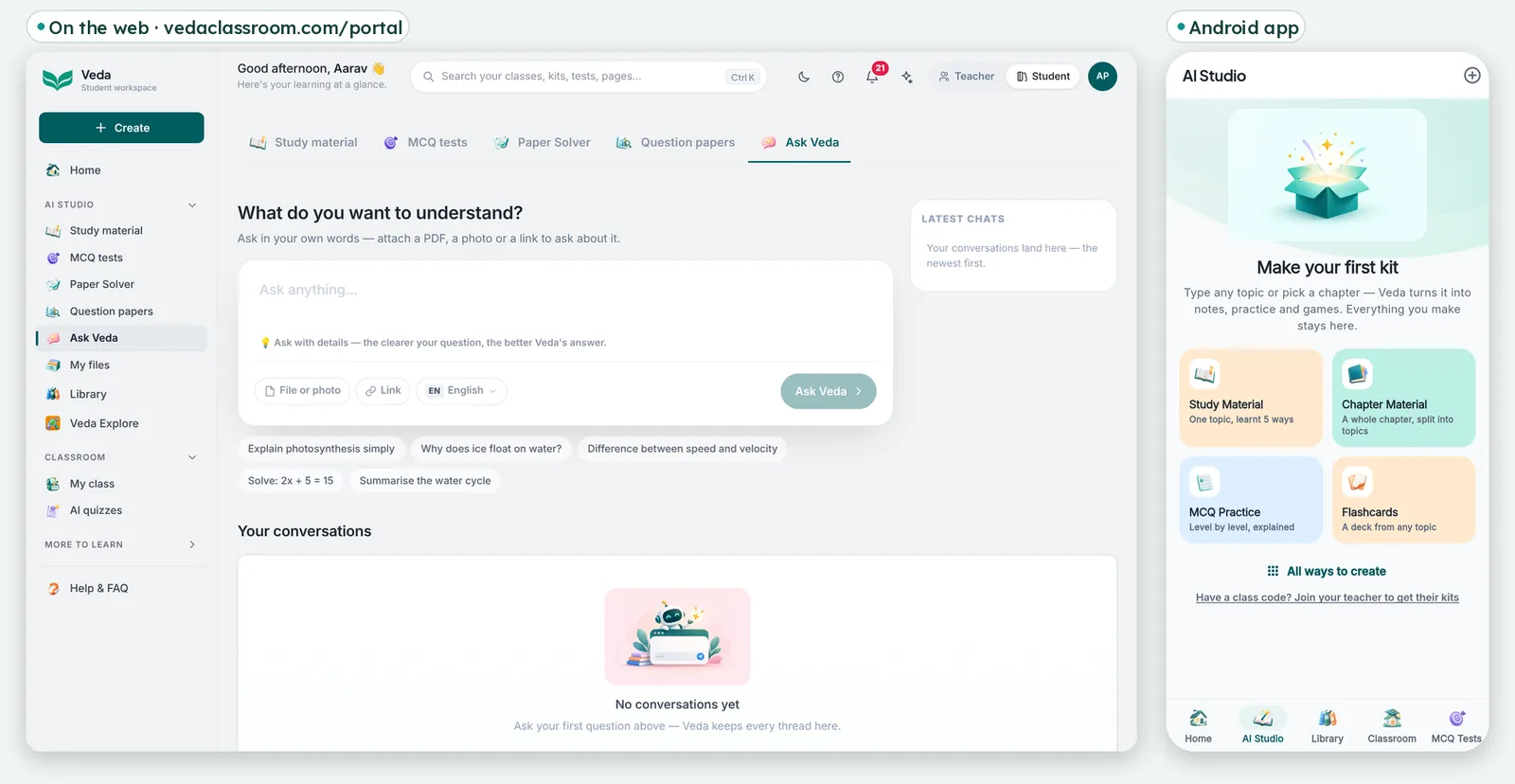
Ask Veda is the doubt solver inside Veda's AI Studio. You type your question in your own words, choose the language you want the answer in, and, if the doubt is about a particular page, attach the PDF, a photo of the page or a link to a YouTube video or web page. Veda answers in the chat. When you think you have understood, tap Quiz me here and the AI writes MCQs from that conversation for you to answer without leaving the chat, with your score and the explanations at the end.
Most doubts arrive at a bad time. It is 11 at night, the homework is due tomorrow, and the one line in the textbook that you do not understand is in a chapter you read in Gujarati, or Spanish, or whatever your medium is. I look after our languages work, so I wanted the answer to come in the language you were already thinking in, not in English you then have to translate back.
How to ask a doubt
- Open Ask Veda. It is a tab in AI Studio, in the Android app and on the web at vedaclassroom.com/portal. The same account works on both, and your chats are kept, so you can start a doubt on the phone and carry on at the computer.
- Type the question the way you would ask a friend. "Why does ice float on water?" works. So does "I don't get step 3 of this sum."
- Attach what the doubt is about, if it is about something specific: a PDF or document, a photo of the textbook page or your notebook, or a YouTube or web link. In the app there is a camera button, so you can photograph the page directly. You can also paste notes.
- Pick your language. The picker covers more than 40 languages, including English, Hindi, Gujarati, Tamil, Spanish, French, Arabic, Indonesian and Swahili.
- Send, and keep asking. It is a conversation. "Explain that more simply" or "give me an example from daily life" are good follow-ups.
Four ways to start
An empty chat offers four starters. Each one only fills the box; nothing is sent until you press Send.
- 💬 Explaina topic, simply
- ➗ Solvea sum, step by step
- 📝 Summariseyour notes into key points
- ❓ Quiz meMCQs to play right there
On the web, each answer also has a Read aloud button that uses your browser's own voice. It helps when your eyes are tired, or when you want to hear how a sentence sounds.
A quiz inside the chat
Understanding an answer and being able to use it are different things. So once you have asked a few questions, Quiz me here turns the chat into a short test. You choose 5, 10 or 20 questions and a level: Easy, Mixed or Hard. You can also quiz yourself on just one answer from the chat.
After you submit, a result card shows your score and the questions you got wrong with the right answer. From there the loop runs like this:
- Askyour doubt, in your words
- Quiz me here5, 10 or 20 MCQs
- Explain my mistakeseach wrong answer, simply
- Retrya fresh quiz on what you missed
Harder questions and All answers are on the same result card.
When the doubt turns into revision
Sometimes one doubt opens up a whole topic you need to go back over. Create from this chat makes something to keep from the conversation, with the chat as the source:
- Chatask until it makes sense
- Create from this chatthe chat becomes the source
- PickStudy material, MCQ practice, Flashcards, Notes or a solved paper
- Revisematerial that follows what you actually asked
Ask Veda is also inside every topic of a kit you are studying. There it answers with that topic in mind, so "what are the common mistakes here?" means mistakes in this topic, not in general.
What it can't do, and what to check
- The AI is sometimes wrong. It can make a mistake in a calculation or say something your textbook puts differently. Check important answers against the book, and if your teacher taught it another way, follow your teacher.
- It answers what you ask. A vague question gets a vague answer. Say the class, the chapter and exactly which line or step confuses you.
- A blurry photo hides the question. Take the photo flat and in good light, with the whole question in the frame.
- Do not hand in its answers as your own. Use the explanation to understand, then write the answer yourself. That is the part the exam checks.
- It uses AI credits. Questions, attachments and in-chat quizzes use credits. The free plan includes a monthly allowance.
If you are revising a whole chapter rather than one doubt, Study Material or Notes in AI Studio is the better place to start. For NCERT subjects, chapter notes and MCQs are already in the NCERT library. The Android app is on the download page.
Questions students ask
Can I ask my doubt in my own language?
Yes. Type it in your language and pick that language for the answer. You can also ask in English and get the answer in Hindi, Spanish or Arabic, or the other way round.
Can I send a photo of the question?
Yes. Attach a photo, or in the Android app use the camera button to take one. A PDF or a link works too.
Can it check whether I have understood?
Yes. Tap Quiz me here for 5, 10 or 20 MCQs inside the chat, then ask Veda to explain the ones you got wrong.