
AI Notes Maker: Short Revision Notes From a Chapter, Photo or PDF
Give Veda a chapter name, a PDF or a photo of your textbook and get notes back: a summary, key points and the full explanation. Ask for a deeper read when one part needs it.
By Miss Shanti Divaraniya, Co-founder
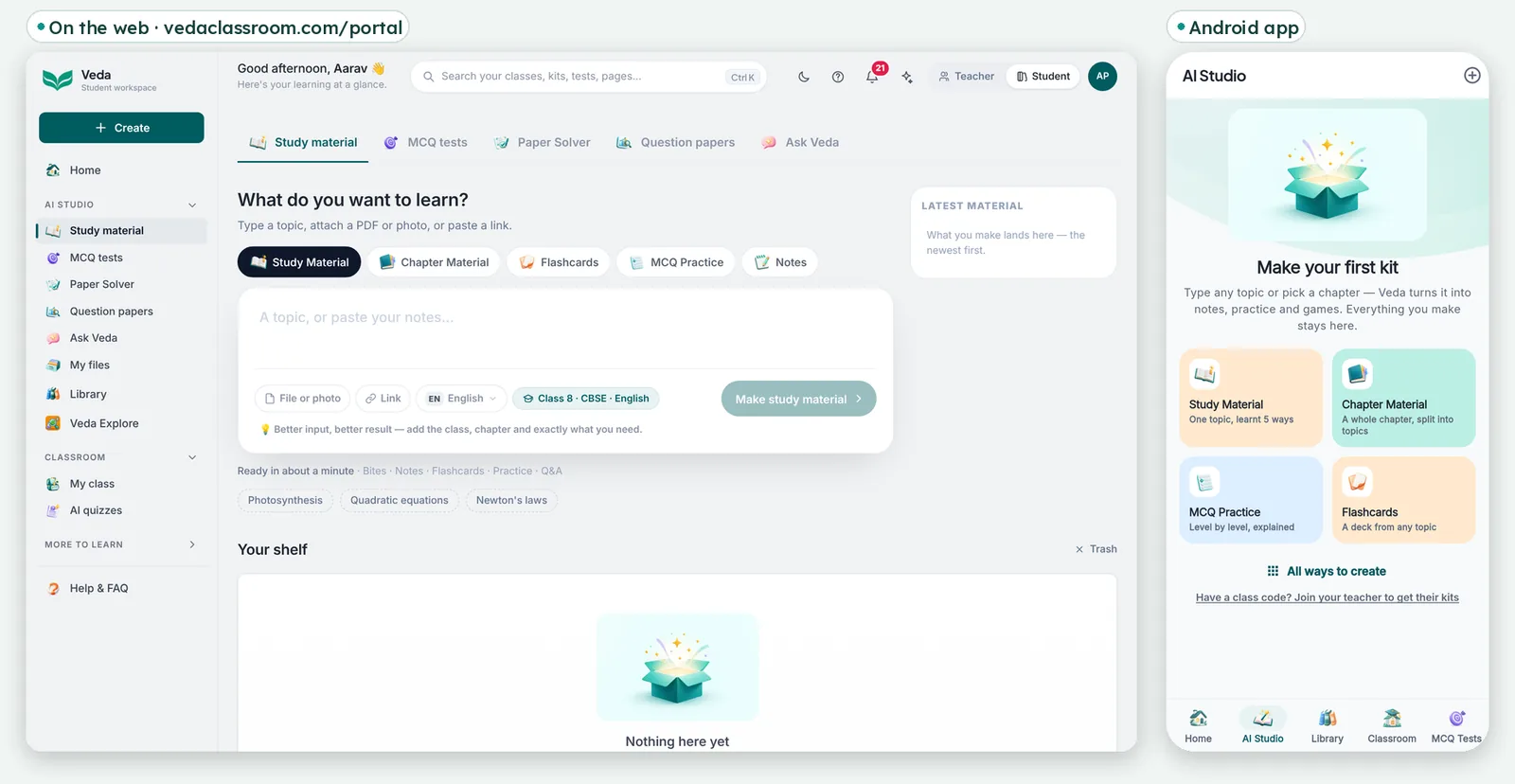
To make revision notes with AI in Veda, open AI Studio, choose Notes, and type the chapter or topic, attach the PDF or a photo of the pages, or paste a link. In about a minute you get notes in three layers: a short summary, the key points, and the full explanation. Pick the language first if you study in Hindi, Spanish, Arabic or another medium. When a part of the notes is not enough, you can ask for a deeper explanation, or ask Veda about that one line.
Notes are what students actually revise from in the last week. Not the textbook, not the guide: the few pages they can read in an evening. The trouble is that writing those pages takes a full pass over the chapter, and that is the pass most of us skip. So we built Notes to do the first draft for you, from your own book, so that your time goes into reading and checking instead of copying.
Three ways in
A chapter or topic name
Type "Laws of motion", "Class 10 History, Nationalism in India" or "Microeconomics, price elasticity of demand". The AI writes notes from what it knows, pitched at the class and medium you chose. Name the class, board and chapter for notes that fit your syllabus better.
A photo of the page
Photograph the textbook pages, or your teacher's board notes, and attach the photo. In the Android app you can take it straight from the camera. Your page, read by Veda's AI and turned into a summary and key points, is the closest thing to the notes your teacher would give, because it starts from the same page.
A PDF, document or link
Attach the chapter PDF the school sent, a Word or PowerPoint file, or paste a YouTube or web link. If you have your own notes typed out, paste them in; long text is treated as material, not as a topic name.
What the notes look like
- Explanationshort sections with headings, read in order
- Quick pointssummary and key points, for the night before
- Extrascomparison table, examples, common mistakes
- For the exama list of what tends to be asked
On the web the quick points come after the explanation, as a recap; in the app they come first, as a two-minute skim. Jump links at the top take you straight to any part.
In the Android app the notes show how many minutes they take to read, and a Share button turns them into a PDF to print, keep in a folder or send to your study group.
When you need more than short notes
Short notes are a summary, and a summary leaves things out. When a part does not make sense, go one step deeper at a time:
- Short noteswhere you start
- Full explanation"Want the full explanation?" writes a detailed read
- Ask Vedaa chat about this topic: "give me an example"
- Learn moreon any MCQ, the idea behind the answer
Turning notes into revision
Reading notes feels like revising, but it is easy to read a page and remember nothing.
- Feels like revising
- Easy to read and forget
- Bites to swipe through
- Flashcards to recall
- MCQ practice with explanations
The extra pieces are made from the same topic, so they test what your notes say.
Got a second source later, such as the teacher's worksheet? Add it to the same kit as more material. Veda writes new bites and cards from it and refreshes the summary, without removing anything already there.
The same account works on the Android app and on the web at vedaclassroom.com/portal. Notes made on the phone during the day are there on the computer in the evening.
What it can't do, and what to check
- Check the notes against your book. AI notes are a first draft. They can miss a point your teacher stressed, or state something a little differently from your textbook. Where they differ, follow the textbook and your teacher.
- A clear photo matters. Shadows, cut-off lines and faint handwriting can be misread. Photograph one page at a time, flat, in good light.
- Short notes are not the whole chapter. Use them to revise what you have studied, not instead of studying it.
- Write long answers yourself. Notes help you remember the points; the exam wants them in your own sentences.
- It uses AI credits. Making notes, the full explanation, and Ask Veda use credits. The free plan includes a monthly allowance.
For a whole chapter at once, choose Chapter Material instead, which splits the chapter into topics, each with its own notes and practice. For NCERT subjects, chapter-wise notes are already written in the NCERT library, where the first and middle chapters of a subject are free to read. The app is on the download page.
Questions students ask
Can I make notes from a photo of my textbook?
Yes. Attach the photo in Notes, or take it with the camera in the Android app. Clear, flat photos give the best notes.
Can I get the notes in my own language?
Yes. Pick the language before you make the notes. More than 40 languages are available.
Can I print the notes?
In the Android app, Share turns the notes into a PDF you can print or send. For a few scripts the PDF cannot lay out correctly yet, the app offers to share the notes as text instead.