
AI Study Material From a Topic, PDF, Photo or YouTube Link
Type a topic, attach a chapter PDF or a photo of the page, or paste a YouTube or web link. Veda's AI reads it and builds one topic five ways: Bites, Notes, Flashcards, Practice and Q&A.
By Prof. Rahul R. Keshwala, Founder
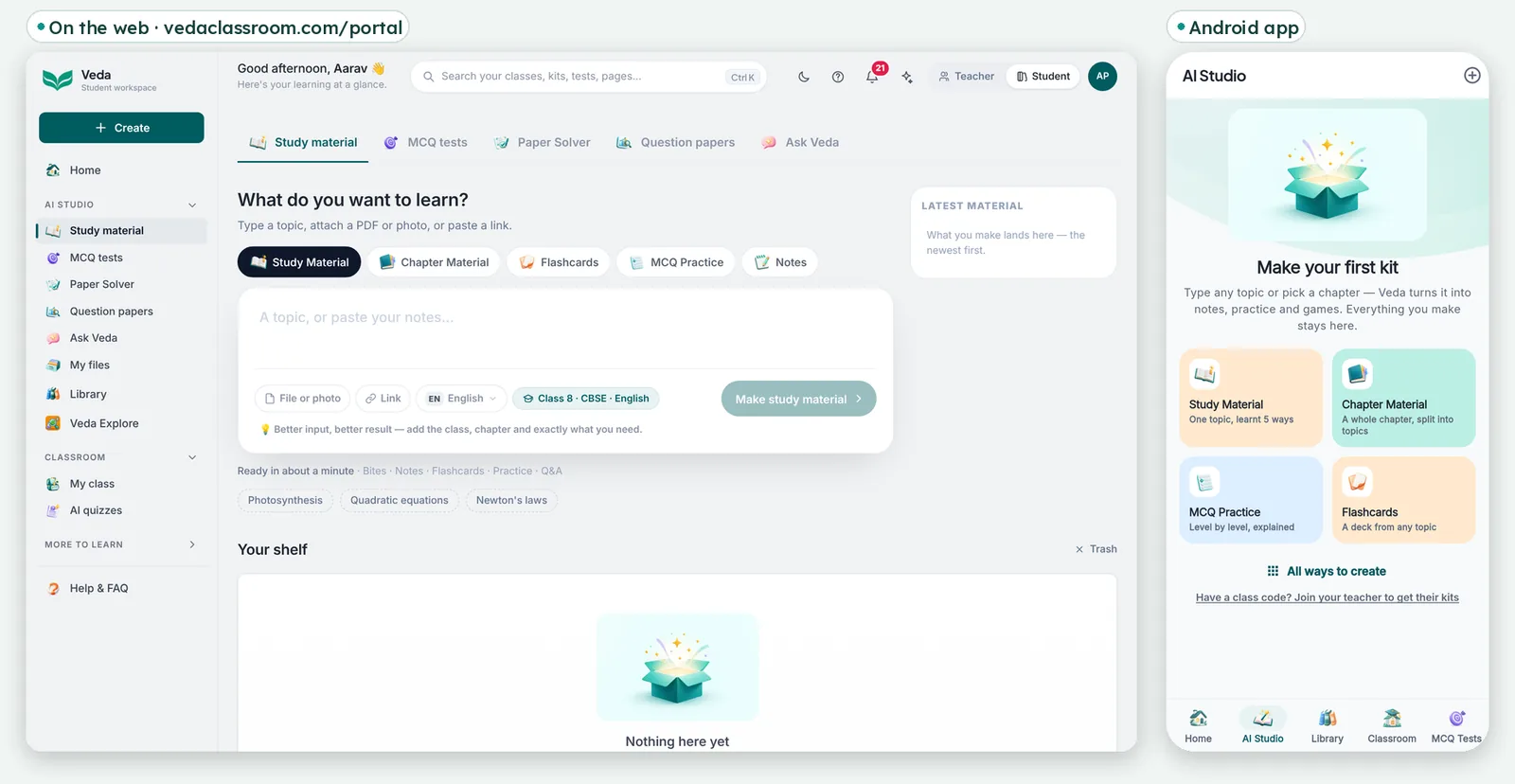
To make study material with AI in Veda, open AI Studio, choose Study Material, and give it one of four things: a topic you type, a file (PDF, Word, PowerPoint or a photo of the page), a link to a YouTube video or a web page, or your own notes pasted in. Veda's AI reads what you gave it and builds one kit that teaches the topic five ways: Bites, Notes, Flashcards, Practice and Q&A, with games made from the same content. It is usually ready in about a minute. If you want a whole chapter instead of one topic, choose Chapter Material, which splits the chapter into topics for you.
We built it this way because students rarely start from the same place. One has the textbook PDF the school sent on WhatsApp. One has a photo of the board. One found a good video on YouTube and wants to revise from it. One only knows the name of the chapter. All four should be able to start studying in the same minute.
The four inputs, and what each is good for
A typed topic
Type "Friction" or "Quadratic equations" and the AI writes the material from what it knows about the topic, pitched at the class, board and medium you chose. This is the fastest start, and the least tied to your own textbook. Add the class and chapter to what you type ("Class 8 Science, Friction, causes and effects"). The box itself says it: better input, better result.
A PDF, a document or a photo
Attach the chapter PDF, a Word or PowerPoint file, a text file, or a photo of the textbook page. On the web you can also drop the file anywhere on the page or pick one you uploaded before from My files. In the Android app you can take the photo straight from the camera. Now the kit is written from your pages, so the examples and terms match your book.
A link: YouTube or a web page
Paste a YouTube link or the address of a web page. Veda reads the video's spoken content or the page's text and builds the kit from that. A video with no captions or speech has nothing to read, and Veda will tell you it could not use it.
Your own notes, pasted in
Paste a long piece of text, such as your class notes typed out, and Veda treats it as material rather than as a topic name. Up to about 20,000 characters goes in the box; for more, upload it as a file. You can add a link or a file as well as pasted notes in the same kit.
What you get: one topic, five ways
- Bitesshort cards for a first look
- Notesthe explanation, then quick points
- Flashcardsa deck to flip and recall
- PracticeMCQs in three levels, each answer explained
- Q&Ashort and long answers with model answers
- Gamesmade from the same content
Notes can carry extra parts where the topic needs them, such as examples, common mistakes or a "for the exam" list. In Practice, clear one level and Veda offers the next, and Learn more asks the AI for a deeper explanation of one question.
Games are made from what the topic already holds, so they sit with the flashcards under Revise. There is also a Test tab, where you can make an MCQ test from the topic with a number of questions, a level and a time limit.
Step by step
- Open AI Studio in the Android app, or on the web at vedaclassroom.com/portal. It is one account, so a kit made on the computer is on your phone too.
- Pick Study Material for one topic, or Chapter Material for a whole chapter.
- Type, attach or paste. A topic name, a file or photo, a link, or your notes.
- Check the language and the class chip. The language picker covers more than 40 languages. The class chip (for example "Class 8 · CBSE · English") tells the AI who the kit is for.
Then work through the kit in this order:
- ReadNotes or Bites first
- TestPractice, from Beginner up
- DrillFlashcards for what did not stick
Study Material or Chapter Material?
- One topic
- Ready in about a minute
- When one topic is giving you trouble
- A chapter name or the chapter PDF
- Topics listed in a minute or two
- Each topic written in full when you open it
Use Chapter Material at the start of a chapter, and Study Material for the topic that keeps tripping you.
What it can't do, and what to check
- The AI makes mistakes sometimes. Read the notes against your textbook. If something does not match what your teacher taught, go with the teacher and the book, and use Report a problem on the topic so we can look at it.
- A typed topic is general. It does not know what your teacher stressed. For exam revision, give it your own chapter or notes.
- A bad photo makes a bad kit. Shadows, cut-off lines and very messy handwriting get misread. Photograph the page flat, in good light.
- It uses AI credits. Making a kit uses credits, and the free plan includes a monthly allowance. Reading and practising a kit you have already made does not; asking for extra pieces, such as Learn more on a question, uses a little.
If you study NCERT, much of this is ready-made already: chapter pages with notes, MCQs, flashcards and bites are in the NCERT library, where the first and middle chapters of a subject are free to read. You can also get Veda on Android from the download page.
Questions students ask
Can it make notes from a YouTube video?
Yes. Paste the link in Study Material, Chapter Material or Notes. The video needs speech or captions for the AI to read.
What files can I upload?
PDF, Word, PowerPoint, plain text, and photos of pages. In the Android app you can also take the photo with the camera.
Can I get the material in my own language?
Yes. Pick the language before you make the kit: English, Hindi, Spanish, French, Arabic or any of more than 40 others. Technical terms are kept the way textbooks usually write them.