
How Teachers Use Learn, Practise, Revise, Test With a Whole Class
Give a study kit to a class, let each student work through Learn, Practice, Revise and Test on every topic, and see who opened it, who finished, and where the class got stuck.
By Prof. Rahul R. Keshwala, Founder
To use the Learn, Practise, Revise, Test method with a whole class in Veda, open a study kit, choose Give to a class, and pick the class or group. The kit appears for those students in the Android app and on the web, where the portal lists it under From my teacher. Each student then works through the four tabs on every topic at their own pace. You open How it is going on the kit to see how many opened it, started and finished, the average progress, and each student's progress. It works the same for a school class, a college section, a coaching batch or a group of private tuition students.
I teach college students, and what I wanted from a tool like this was simple. I did not want another place to post a PDF that half the class never opens. I wanted to give them one topic to work through properly, and to know on Monday morning who had done it.
- Make or pick a kitFrom a topic, a PDF, a photo, a link or the library
- Check itRead the notes and questions before students do
- Give it to a classOr a group, with optional dates
- Watch how it is goingOpened, started, finished, progress
- Reteach the gapsUse class time for what went wrong
Step 1: get a kit ready
A kit can come from two places. The library inside Veda has ready-made material for many subjects (NCERT is one example of what it holds). Or you make one in AI Studio: choose Study Material for a single topic or Chapter Material for a whole chapter split into topics, and give it a typed topic, a PDF, a photo of your notes or a link. The AI reads what you gave it and writes the notes, practice questions at three levels with explanations, flashcards, games and short revision Bites, in the language you choose from more than 40.
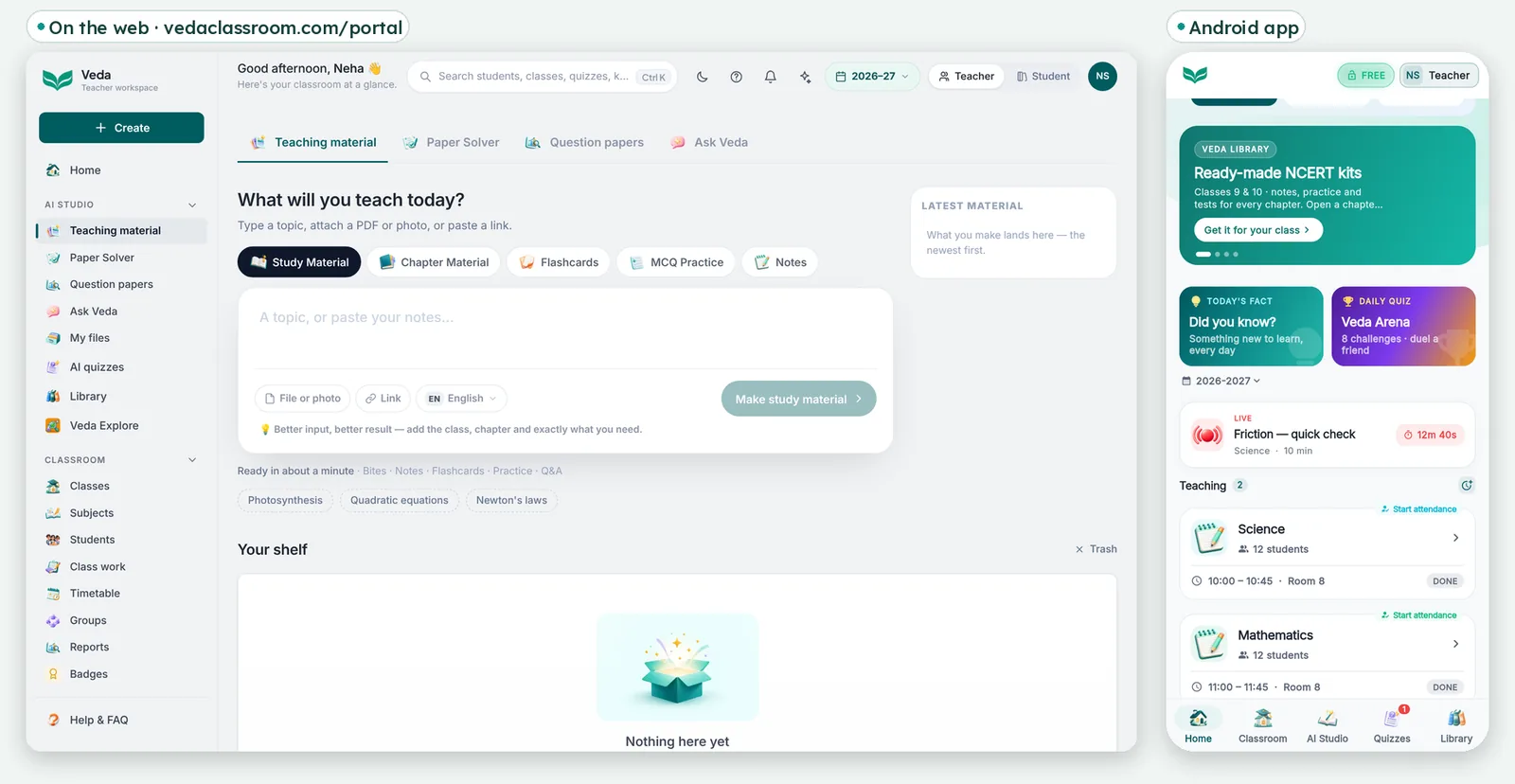
Read it before you share it. The AI is usually accurate, but it is not your syllabus and it does not know what you said in class last week. Five minutes on the notes and a sample of questions is enough to catch anything that does not match how you teach.
Step 2: give it to the class
- Open the kit and choose to share it, then Give to a class.
- Pick a class or a group. Groups are useful when only some students need a topic, such as a remedial set.
- Optionally set Available from and Until dates, and file it under a subject.
- Choose Share it. Sharing also publishes the kit, so it stops being a draft; Veda says so before you confirm.
Students who have joined your class see it straight away in the app and on the web at vedaclassroom.com/portal.
What students do with it
- Learnnotes, key points, examples
- PracticeBeginner to Advanced, a Why after each
- Reviseflashcards due today, games
- Testtimed, scored, reviewed
In Practice, every answer is followed by a short explanation, and Learn more gives a longer one. In Revise, flashcards are rated Forgot, Unsure or Knew it, so hard cards come back sooner. In Test, a student builds a timed test from the topic's own questions or from a fresh set the AI writes, then reviews every answer. You can also add a kit test of your own to the kit for the whole class to take.
What you see as the teacher
There are two views. On the whole kit, How it is going shows the class at a glance. On a single topic, the figures go one level deeper.
- Openedhow many students opened the kit
- Startedhow many began working on it
- Finishedhow many completed it
- Avg progressthe class average, as a percentage
- Views and Likeshow often it was opened, and liked
- Who has opened iteach student with a progress bar
On one topic, the web shows how many opened it, finished, the average progress and the average quiz score, then what they did: read the explanation, finished the flashcards, passed the quiz. In the Android app, each student's card on a topic shows badges for Learn, Practice, Cards, Games and MCQ Test, with their best quiz score and best test score.
- Teachthe topic in class
- Sharethe kit for that topic
- Checkwho finished, where scores dipped
- Reteachonly what was missed
The most useful thing I do with the figures is look for the students who opened the kit and stopped. They are usually the ones who found the first Practice level harder than expected, and a two-minute conversation helps more than another reminder.
What it can't do, and what to check
- Check the AI's work before students see it. Notes and questions are written by AI and can contain mistakes. Read the kit before you share it, and remove or report anything wrong.
- Figures show activity, not understanding. A finished kit means the student went through it. Use the test scores and your own questions in class to judge what they learnt.
- Students need to be in the class. Only students who have joined your class or group get the kit.
- AI work uses credits. Making kits, fresh AI tests, kit tests and Learn more use AI credits; the free plan includes a monthly allowance. Classes, students, attendance and marks are free.
For the student side of the method, share our post on learn, practise, revise, test with your class.
Questions teachers ask
Can I give one kit to more than one class?
Yes. Give it to each class or group in turn. Who has it lists every class and group it went to.
Do students need the app?
No. They can work through a kit on the web or in the Android app with the same account.
Can I limit when a kit is available?
Yes. Set Available from and Until dates when you give it to the class. Both are optional.