
Make Your Teaching Timetable on Your Phone, Free (With Reminders)
Add each weekly period with its class, subject, time and room. Veda then shows today's periods on your home screen with Start attendance, and reminds you about 10 minutes before each one.
By Miss Shanti Divaraniya, Co-founder
To make your teaching timetable on your phone, open Veda, add each period you teach in a normal week with its class, subject, day, start and end time and room, and save. From then on your home screen opens on Teaching today, with a Start attendance button on each period, and the app reminds you about 10 minutes before each lecture. It is free, uses no AI credits, and works on the web too, whether your periods are school lessons, college lectures or coaching and tuition batches.
Most teachers carry their timetable in their head after the first two weeks of term. That works until the week stops being normal: an extra class before exams, a tuition batch moved to Saturday, a period you are covering for a colleague. We built the timetable so the phone can carry the week for you, and so the period you are about to teach is the first thing you see.
How to set up your week
- Classes firstEach period belongs to a class and subject
- Open the timetableTeaching schedules in the app; My timetable on the web
- Add each periodSubject, day, start and end time, room
- Allow notificationsWithout that permission no app can remind you
- Check tomorrowToday's periods should be listed in order
In the Android app the timetable is Teaching schedules in the Classroom tab. On the web at vedaclassroom.com/portal it is My timetable, with an Add period button. It is the same account, so you can build the week on a computer and it is on your phone straight away. If a period is missing on the home screen the next morning, it was not added for that day.
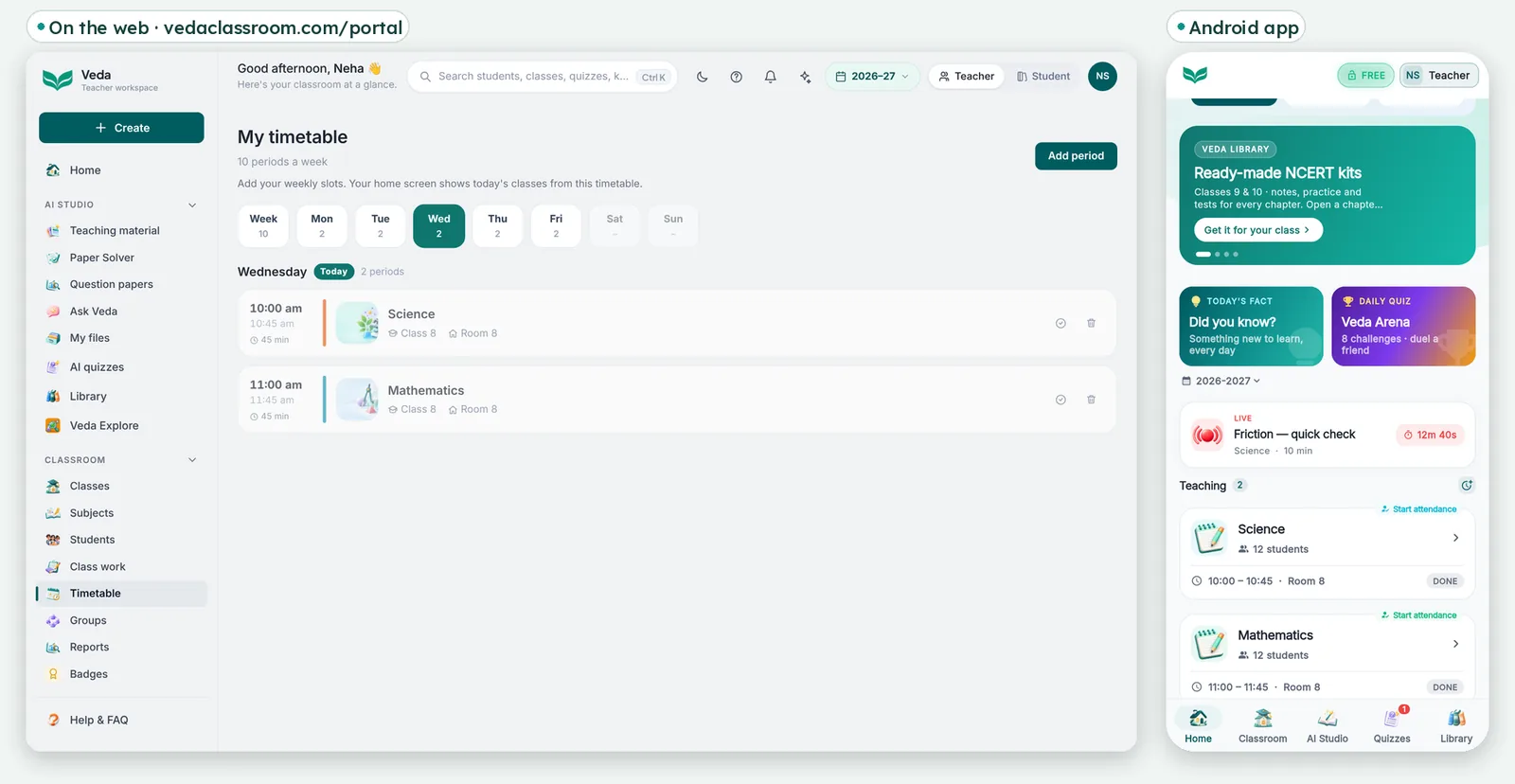
What you get once it is set
- 🏠 Teaching todayToday's periods on the home screen, with time and room
- ✅ Start attendanceFrom the period straight to that class's register
- 🔔 A reminderAbout 10 minutes before each period
- 🖥️ The week on the webDay tabs, period cards and a Week view
- 👩🎓 Students see itThe teaching schedule for their class, app and web
The reminder is the part teachers with irregular weeks use most. Reminders follow the timezone on your account. On the web, today's tab is picked for you and each period card has its class, time, room and an attendance shortcut. And because students who have joined can see the schedule, you save the Sunday-night "Sir, is there class tomorrow?" message, as long as you keep it up to date.
Tips for teachers with many batches
- One class per batchMorning and evening batches each get their own periods, register, reminders
- Name it as you say it"Class 10 Maths, Sunday" beats "Batch B" at 7 am
- Centre in the nameTeach in two places? The name tells you where
- Extra classesAdd them for the weeks they run, then remove
- One-off sessionsA Saturday practical goes in Session attendance
Session attendance is kept apart from the regular register, so a doubt session does not change the regular percentages.
The rest of your week is in the same place
The timetable sits next to everything else for the class. After the period, you can write a one-minute entry in the teaching journal: what you covered and the homework. Attendance, marks and shared materials are on the same subject screen. All of these are free, with no limit on classes or students. We described the journal and timetable together on our teacher diary app page, and wrote more about reminders in teaching schedule and lecture reminders.
The same home screen also has a shortcut to make teaching material with AI, if you want it. That part uses AI credits; the timetable does not.
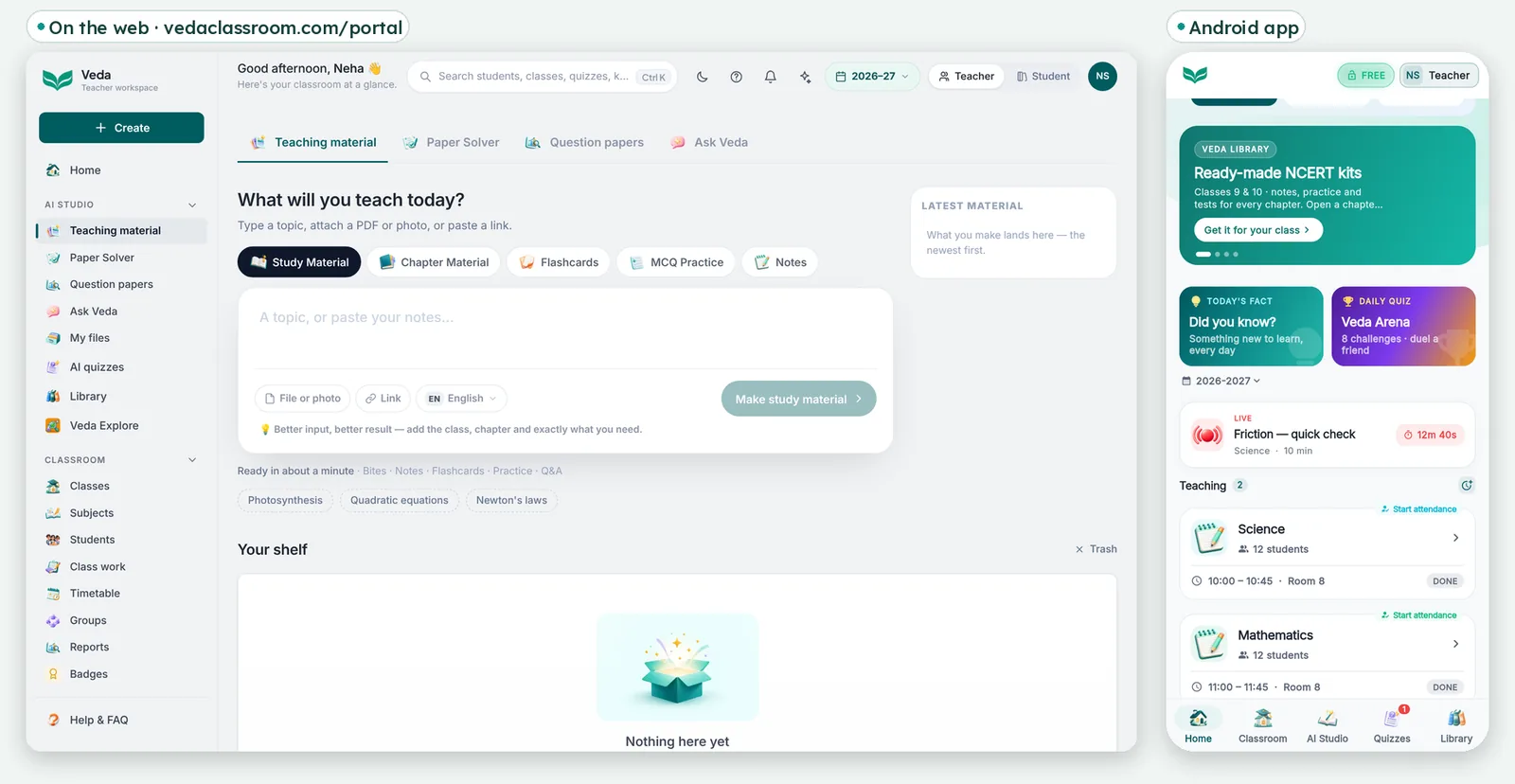
- The periods you teach
- Reminders and Start attendance
- Free, no AI credits
- No whole-school timetable
- No load balancing or substitutions
- A product for schools is coming soon
What it can't do, and what to check
- It is your personal teaching timetable, not a school timetable generator. It holds the periods you teach. It does not draw up a whole school's timetable, balance teachers' loads or handle substitutions. A product for schools is coming soon.
- It only knows what you entered. If the school changes the timetable, update yours the same day, or the reminder will come for the old period.
- Phone settings can block reminders. Battery saver and turned-off notifications can delay or hide them on some Android phones. If a reminder does not come, check the app's notification and battery settings first.
- Reminders come from the Android app. You can build the timetable on the web, but the notifications arrive on your phone, so keep the app installed and signed in.
Start with this week
Add this week's periods once, check tomorrow's home screen, and let the app carry the rest. The timetable and lecture reminders are free for teachers. See all the free teacher tools, or download Veda here.
Questions teachers ask
What do I need to enter for each period?
The class and subject, the day, the start and end time, and the room. That is enough for the home screen and the reminders.
Can I take attendance from the timetable?
Yes. Each period in Teaching today has a Start attendance button, and on the web each period card has an attendance shortcut.
Can it make the timetable for my whole school?
No. It is a personal timetable for the periods you teach. A product for schools is coming soon.