
Free Classroom Management for Teachers: Everything You Can Run in Veda
Classes, students, attendance, materials, marks, a teaching journal, your timetable and quizzes you type yourself are free in Veda, with no limit on classes or students. Here is a teacher's week, step by step.
By Prof. Rahul R. Keshwala, Founder
In Veda, the everyday work of running a class is free: creating classes and subjects, adding students, taking attendance, sharing study material, recording marks, keeping a teaching journal, setting your weekly timetable and running quizzes you type yourself. It is free on every plan, with no limit on classes or students, and none of it uses AI credits. Only the AI features, such as generating a quiz or solving a paper, use credits, and the free plan includes a monthly allowance of those too. It works the same for a school section, a college course, a coaching batch or a home tuition group, in more than 40 languages.
We get asked "what is actually free?" often enough that we decided to write it down in one place, by following a teacher's week. Everything below works in the Android app and on the web at vedaclassroom.com/portal with the same account, so you can set things up on a computer and use them on your phone in class.
- SundaySet up classes, subjects and batches
- MondayGet the students in
- Every periodAttendance with P, A, L or E
- TuesdayShare notes, files and links
- WednesdayRecord the test marks
- After each periodA one-minute teaching journal entry
- FridayA quiz you type yourself
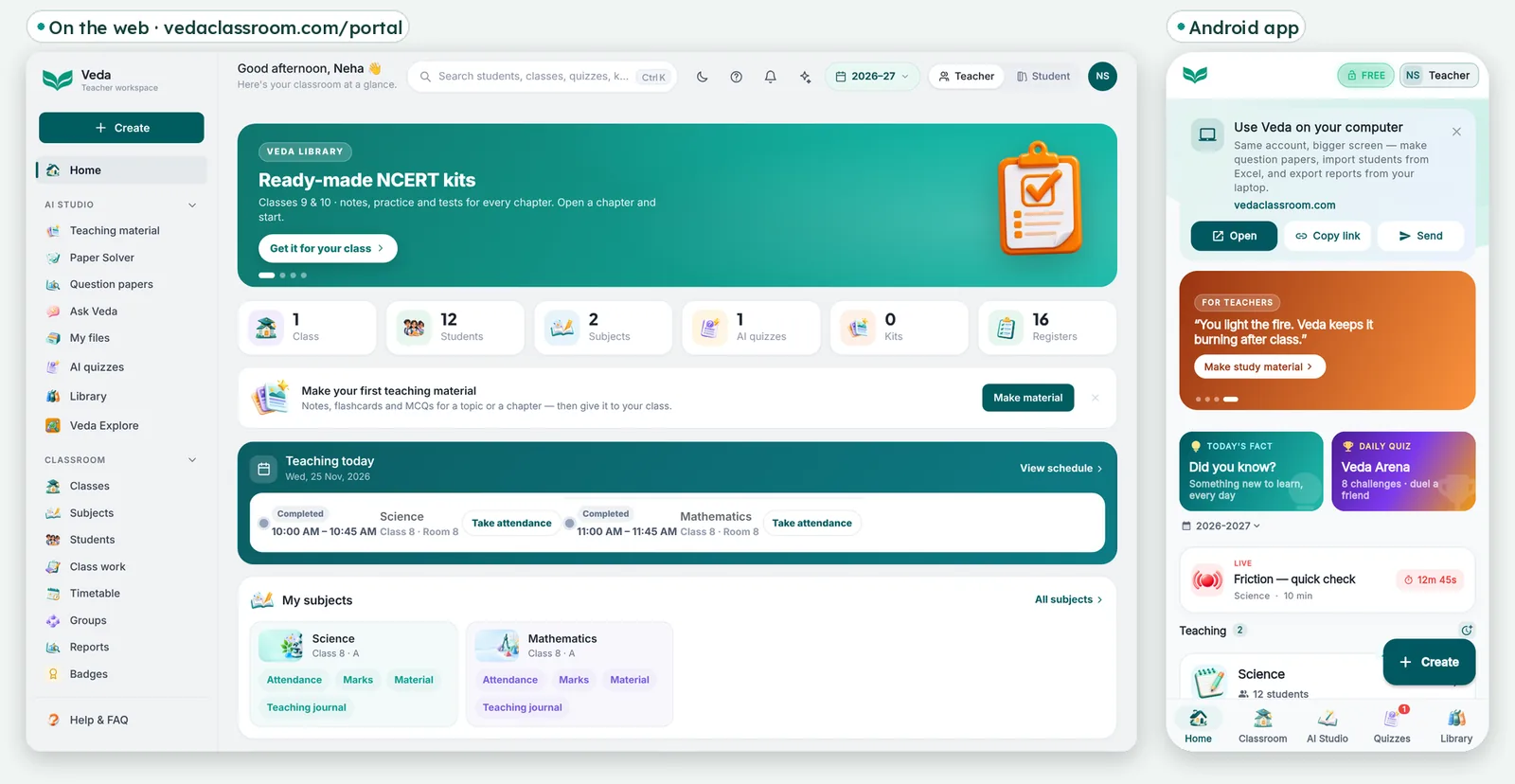
Sunday: set up the class
- Create a class. One class per section, course or batch you teach. There is no cap on how many you make.
- Add its subjects. Attendance, marks, materials and the journal all hang off the subject, so a teacher who takes Science and Mathematics in Class 8 adds both.
- Set the academic year if you want this year's records kept apart from next year's.
- Make batches if the class splits. Batches inside a class are useful for lab groups or divisions that are taught separately.
Monday morning: get the students in
- 🔗 Join codeCode, QR or link; students sign in with Google or email
- 📄 Excel importIf the list is already in a sheet
- ✍️ By handOne by one
- 📇 Your directoryStudents already in another of your classes
With a join code, you can approve join requests one by one and turn the "Accept new students" switch off once everyone is in.
Students you add by hand do not need the app for you to take their attendance. We wrote more about the options in getting your students into the app.
Every period: attendance
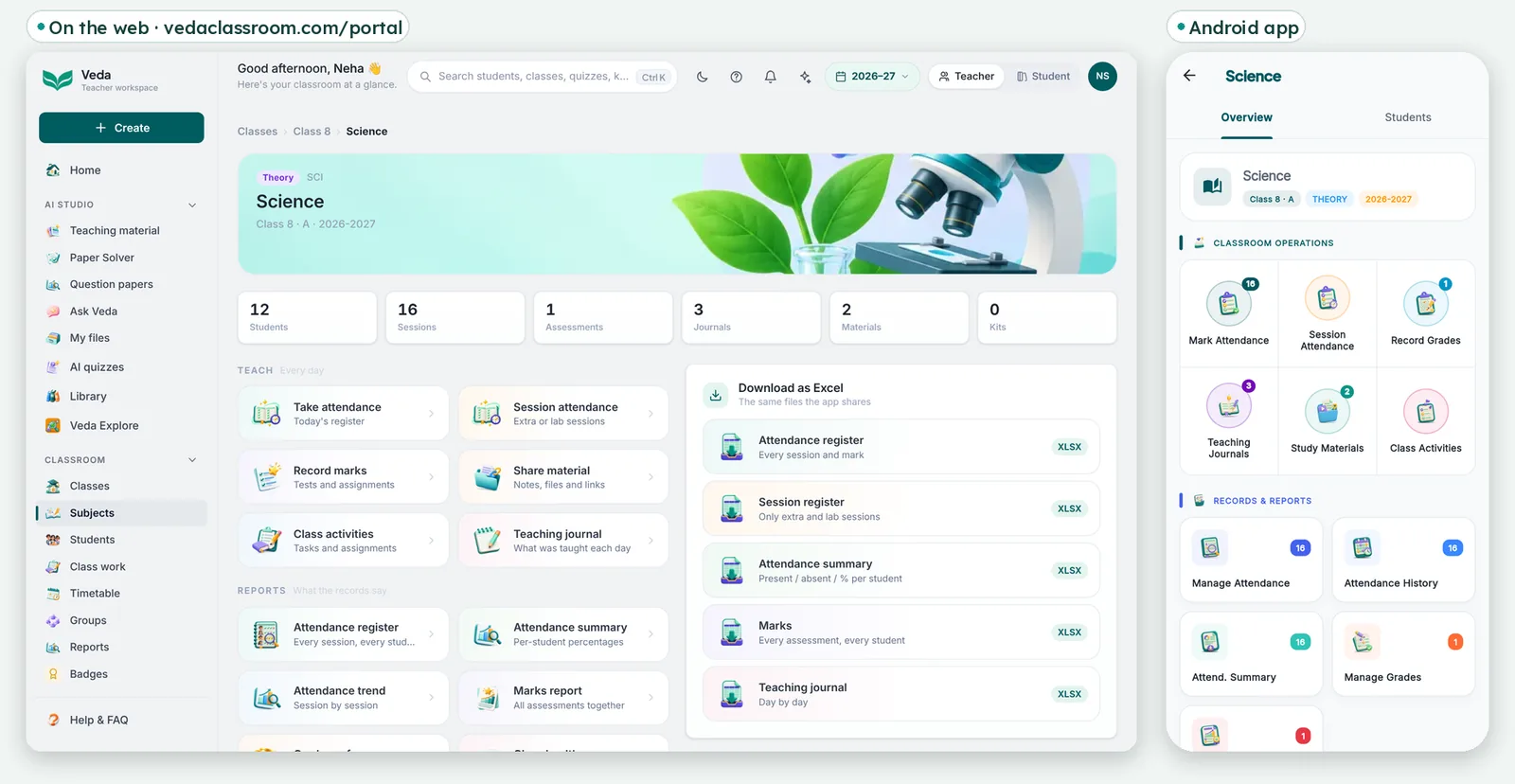
Open the subject, tap Mark Attendance, and mark each student P, A, L or E (present, absent, late, excused). Mark all present and then change the two who are missing is usually fastest. The presence rate shows before you save. If you get one wrong, open the session from the history and correct it later. Extra and lab classes go in Session attendance, kept apart from the regular register.
Once a few sessions are in, you get the attendance history, a by-student view, a trend view, and a heatmap in the app. The attendance register, session register and attendance summary download as Excel files, and on the web there is a Print register button. All of this is free. The details are on our attendance app page.
Tuesday: share the notes
Under Study Materials for the subject, share a PDF, a file, a document or a link such as a YouTube video. Students open it under Study material on the web or Access Materials in the app, sorted by subject. There is no limit and no credit cost. This is the part that replaces "please check the WhatsApp group" for many teachers, because the notes stay attached to the subject instead of getting buried under fifty other messages.
Class Activities sit on the same subject screen, and they are free as well.
Wednesday: record the test marks
Create an assessment for the subject with its maximum marks, for example a unit test out of 25, and record each student's marks. On the web you can paste a column of marks straight in. The Grade Report shows the class at a glance, and the marks sheet prints or downloads as Excel. Each student sees their own marks and nobody else's. The student profile puts attendance and marks side by side, which is useful before a parents meeting.
After each period: the teaching journal
A one-minute entry after each lecture: the date, what was covered, and the homework that went out. Each subject has its own journal, private to you, and it downloads as Excel day by day when the school asks for a record. We wrote about the habit in recording what you taught.
Once a term: the weekly timetable
Add each period you teach with the class, subject, day, time and room. The home screen then opens on Teaching today, with Start attendance on each period, and the app reminds you about 10 minutes before a lecture. Students in your class can see the teaching schedule too. The timetable and the journal are described together on our teacher diary app page.
Friday: a quick quiz you type yourself
Quizzes you type yourself, or import from Excel, are free. Share them by code, QR, link or WhatsApp, or assign them to a class. While students write, the live monitor shows who has joined, who is writing and who has submitted, and there is a projector view for the classroom screen. Results and the leaderboard come at the end. Students play class quizzes in the Veda app on Android.
What uses AI credits
We would rather be clear about this than have you find out halfway through a lesson.
- Classes, subjects, students
- Attendance and registers
- Materials and Class Activities
- Marks, journal, timetable
- Quizzes you type or import
- AI quizzes from a topic, text, PDF, web page or YouTube video
- Question papers, incl. from the NCERT question bank
- Paper Solver
- AI Studio: Study Material, Chapter Material, Notes, Flashcards, MCQ Practice
- Ask Veda
The free plan includes AI credits every month, so you can try all of these without paying. But they are not unlimited, and the classroom tools never touch them.
What it can't do, and what to check
- It is not a whole-school system for an individual teacher. If you sign up on your own, you manage your own classes. There is no separate parent login; share the exported sheets with parents instead.
- It shows the numbers, it does not decide. Attendance percentages and marks are calculated for you, but eligibility, grading rules and what counts as an approved absence stay with your school.
- There are sponsored banners. The home screen on the app and portal shows them. They do not sit inside your registers.
- Ask before you drop paper. If your school wants its own printed register or diary format, check whether it will accept the exported sheets.
Where to start
Do not move everything at once. Set up the one class you teach first tomorrow, take attendance in it for a week, and add the other pieces when you need them. The full list of free tools is on our free teacher tools page, and you can download Veda here.
Questions teachers ask
Is there a limit on how many classes or students I can have for free?
No. Classes, subjects and students are free on every plan, with no limit.
Does taking attendance or recording marks use AI credits?
No. Attendance, marks, materials, journals and the timetable never use credits. Only the AI features do.
Can I use it on a computer as well as my phone?
Yes. The same account works in the Android app and on the web portal, and what you do on one shows on the other.