
A Teacher's Week With AI: Plan, Teach, Quiz, Mark and Report
One ordinary teaching week, step by step: plan, make material, teach, run a short quiz, mark and report. Where the AI saves you time, and where your judgement still has to lead.
By Prof. Rahul R. Keshwala, Founder
A good teaching week has the same six steps whether you teach a primary class, a college course or an evening tuition batch: plan, make the material, teach, check understanding with a short quiz, mark, and report. In Veda, the AI takes the first draft of the material and the quiz off your desk, and the classroom tools (attendance, marks, journal, timetable, reports) keep the record for you. What you teach, what you stress, and what you do when the quiz shows a gap stay with you.
I have taught for many years, and the part of the week that wore me down was never the teaching. It was the copying: notes out of the book, questions onto paper, marks into a register and then again into a spreadsheet. This post is the week as we now run it, one step at a time.
- Before MondayFix the periods and the topics for the week
- MondayMake the material from your own chapter or notes
- Tuesday to ThursdayTeach, take attendance, write the journal
- ThursdayA ten-minute quiz to check understanding
- FridayReteach what the quiz showed, then mark
- WeekendReports and exports, only if someone needs them
Step 1: Plan the week around periods, not around files
Put your weekly periods into the timetable once: class, subject, time and room. Veda then shows "Teaching today" on your home screen with a Start attendance button for each period, and reminds you about ten minutes before a lecture. Planning then becomes a short question: what will each of these periods be for?
Write the plan as outcomes, not pages. "By Thursday they can explain why friction produces heat" is something you can check. "Finish pages 40 to 52" is not.
Step 2: Let the AI write the first draft of the material
Open AI Studio as a teacher. It asks "What will you teach today?" and offers Study Material, Chapter Material, Flashcards, MCQ Practice and Notes. Give it the chapter you actually teach:
- A typed topica chapter name or a concept
- Your own notespasted as text
- A filePDF, Word, PowerPoint or a photo of a page
- A linka YouTube lesson or a web page
- A languageany of more than 40
The AI reads what you gave it and builds a kit. Each topic opens in four tabs: Learn (the notes), Practice (MCQs level by level, short and long answers), Revise (flashcards, games and Bites) and Test. Read it the way you would read a textbook you have not used before, and fix anything you would not say in class.
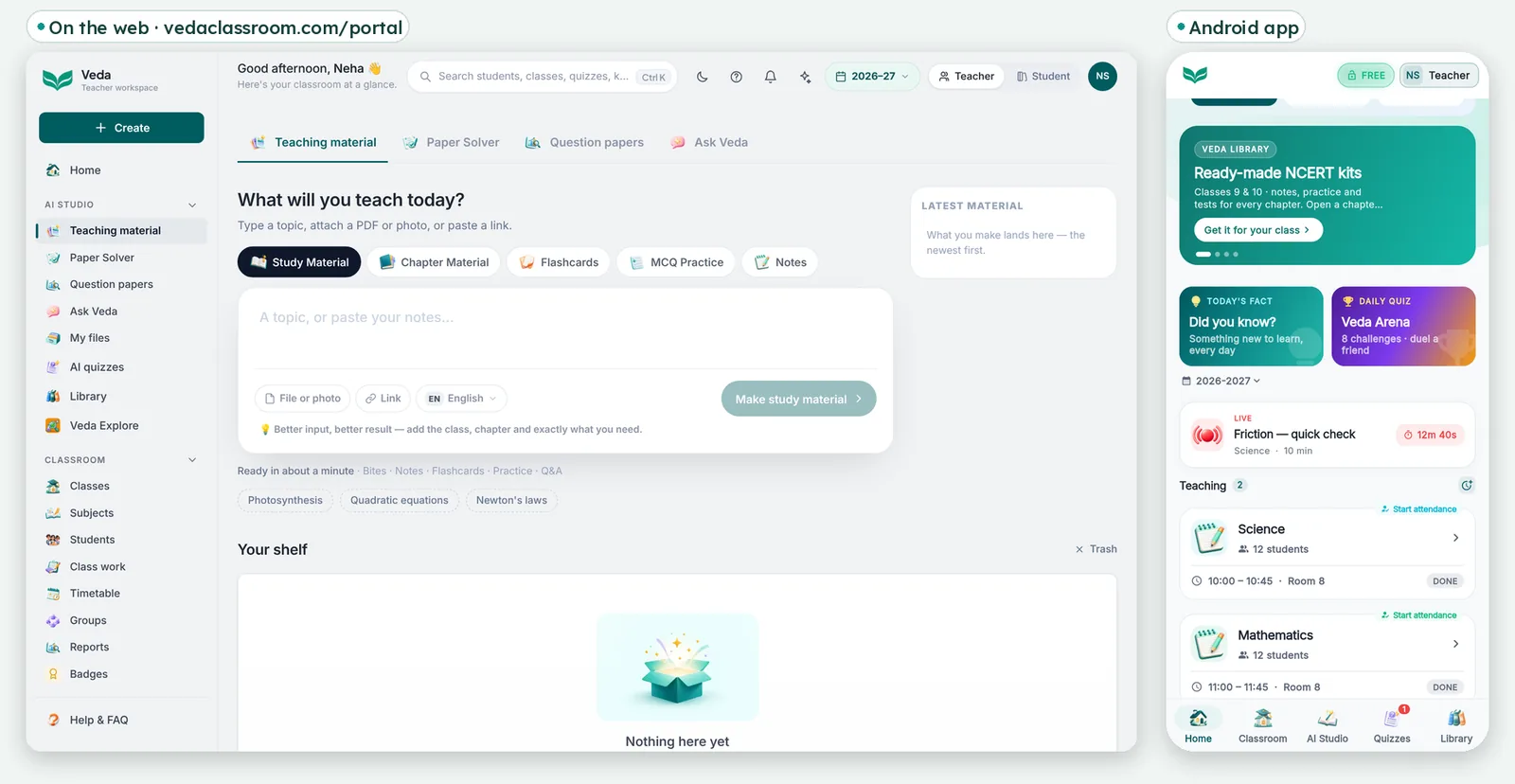
Then use Give to a class, with dates if you want it open only for the week. It appears for your students in the Android app and on the web. Making material uses AI credits; the free plan includes a monthly allowance.
Step 3: Teach, and let the record keep itself
During the lesson, Veda stays out of the way. Around it, three free tools do the record-keeping: attendance (P, A, L or E per student, with Mark all present), the teaching journal (what was covered and what homework was set, dated), and study materials, where you share your own PDFs and links. None of them use credits, and there is no limit on classes or students.
Step 4: A short quiz, to check, not to grade
Teachers have long known that a quick check during learning is worth more than a big test at the end, because it arrives while there is still time to act. Researchers call this formative assessment; Paul Black and Dylan Wiliam made the case for it in their well-known 1998 work "Inside the Black Box". The idea is simple: ask, look at the answers, change what you do next.
- Teachthe topic
- Quizten minutes, scored for you
- Lookwhich question most got wrong
- Reteachonly that part
To make it, create an AI quiz from a topic, pasted text, YouTube, a web page or a PDF, or take the questions straight from the kit you made on Monday. Choose the language, how many questions, the difficulty and the marks. You check every question before it goes out. Share it by code, QR or link, or assign it to the class. Students play it in the Veda app on Android while you watch the live monitor: who joined, who is writing, who submitted, each score, and a projector view for the board.
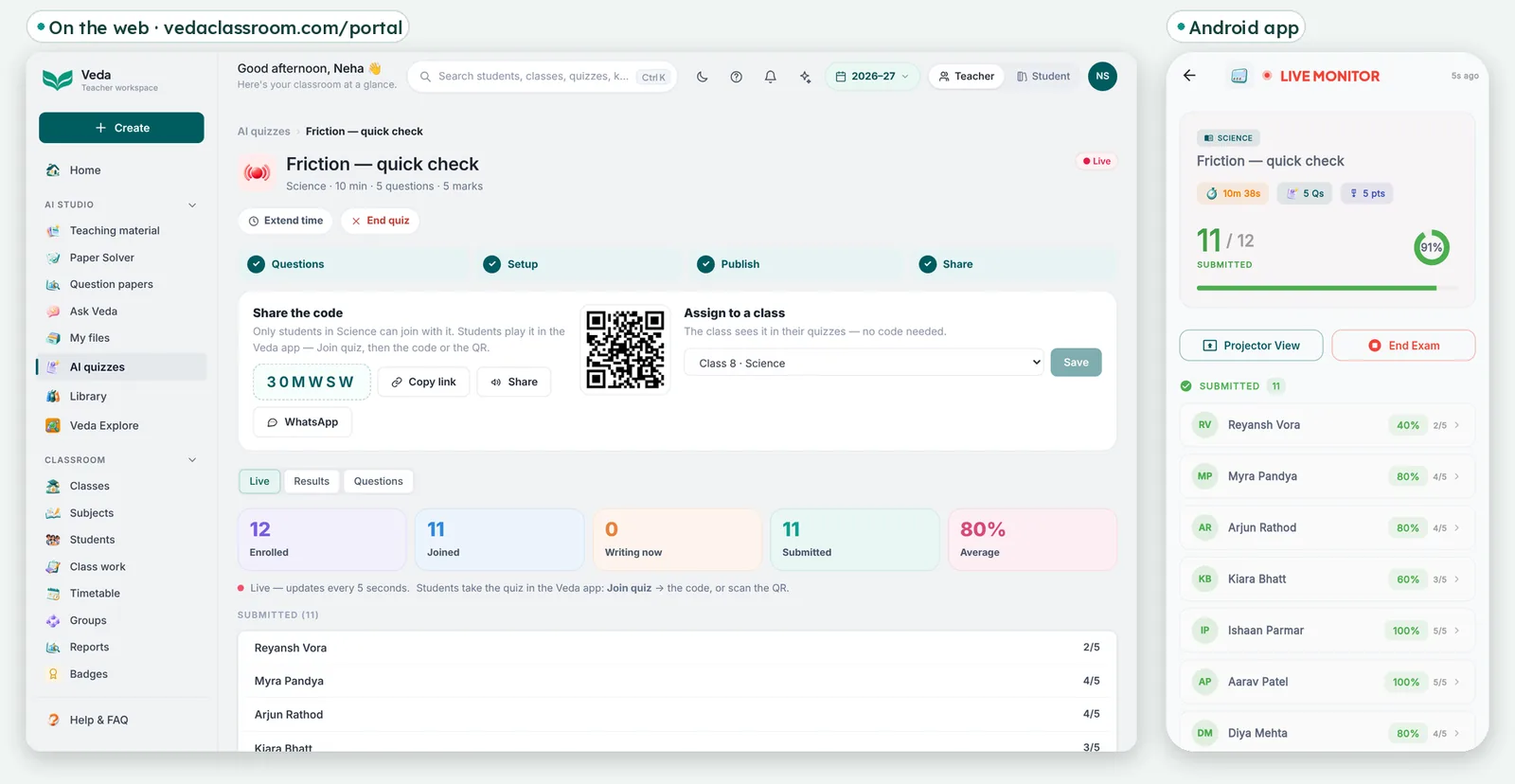
Afterwards, the quiz page goes question by question: what share of the class got each one right, and the most common wrong answer. That wrong answer is the useful part. It tells you what they think, not only that they are wrong.
Step 5: Reteach, then mark
Spend the first ten minutes of Friday on the one or two questions most of the class missed. Then record the week's marks: create an assessment with its maximum marks and enter each student's score (on the web you can paste a column of marks). The grade report and the marks sheet are built from what you entered.
Step 6: Report only what someone will read
Because attendance, marks and the journal were kept all week, reports cost nothing extra. Download the attendance register, attendance summary, marks and teaching journal as Excel, print a register or a marks sheet, or open one student's profile, with attendance and marks together, and print it for a parent meeting.
- Notes, cards and practice
- Quiz questions
- A question paper when you need one
- What each period is for
- Which questions go out
- What to reteach on Friday
What it can't do, and what to check
- The AI makes mistakes. A wrong key or a muddled line reaches every student you give it to. Read it first.
- It does not know your class. It knows the material you gave it, not who was absent last week or which idea always confuses them.
- Quizzes are played on Android. Students take class quizzes in the Veda app on Android. Kits open in the app or on the web.
- Credits. AI material, AI quizzes and question papers use credits. Attendance, marks, the journal, the timetable, materials and quizzes you type or import from Excel are free on every plan.
The same account works in the Android app and on the web at vedaclassroom.com/portal, so you can make the kit on a computer on Monday and run the quiz from your phone on Thursday. The free tools are listed on the free teacher tools page.
Questions teachers ask
Do I have to use every step?
No. Many teachers start with attendance and the quiz, and add material later.
Does this work for any subject or level?
Yes. Classes and subjects are named by you, so a Class 6 science section, a second-year statistics course and a weekend language batch all work the same way.
Can students without the app use the material?
Yes, kits and shared materials open on the web too. For class quizzes they need the Android app.